


Home Affordable MinersHow to set up an Antminer S21 XP step by step

How to set up an Antminer S21 XP step by step

By Anthony Lowrance April 18, 2024
Whether you’re a beginner or scaling your mining farm, follow this complete setup tutorial to start mining in minutes

Cryptocurrency mining continues to evolve rapidly, and high-performance machines like the Antminer S21 XP are helping miners achieve better efficiency and profitability. If you’ve just received your miner from asicminers.org, this step-by-step guide will help you set up your Antminer S21 XP quickly, safely, and correctly.

Setting up the Antminer S21 XP is straightforward when you follow the right steps. With proper configuration, cooling, and monitoring, you can start mining efficiently and maximize your returns.

If you purchased your miner from asicminers.org, their support team can also assist you with advanced configuration, firmware updates, and farm optimization.

Ready to scale your mining operation? Start smart, stay secure, and mine profitably

What You Need Before Setting Up

Before you begin the installation process, make sure you have the following:

  • Antminer S21 XP miner
  • Compatible Power Supply Unit (PSU)
  • Ethernet cable
  • Stable internet connection
  • Mining pool account
  • Proper ventilation or cooling system
  • Power outlet with stable electricity

Important: The Antminer S21 XP consumes significant power. Ensure your electrical setup can handle the load to avoid damage or downtime.

Step 1: Connect the Power Supply

  1. Place your Antminer on a flat, dust-free surface.
  2. Connect the PSU cables securely to the miner’s power ports.
  3. Plug the PSU into a reliable power source.
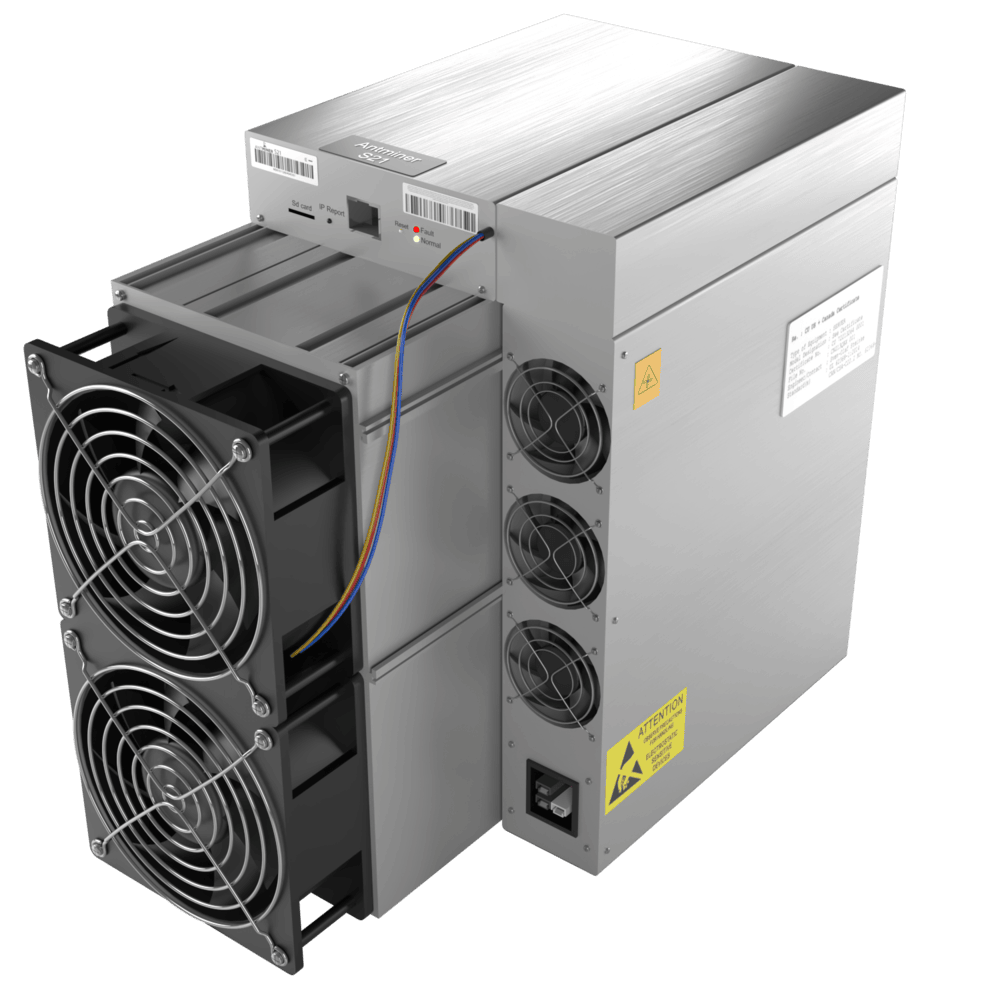
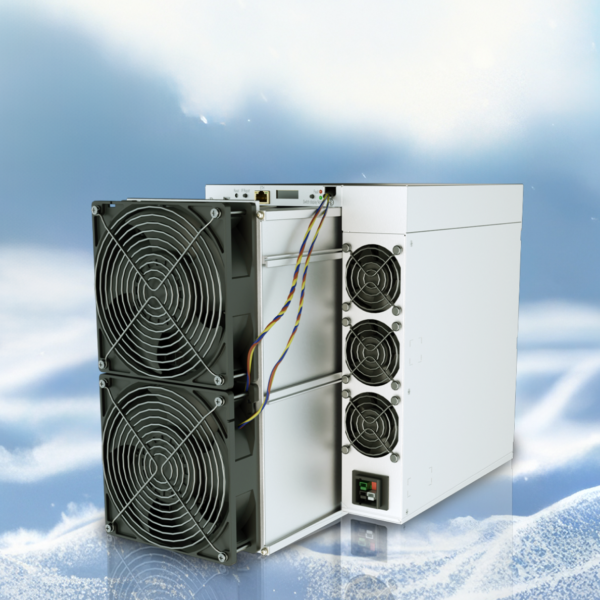
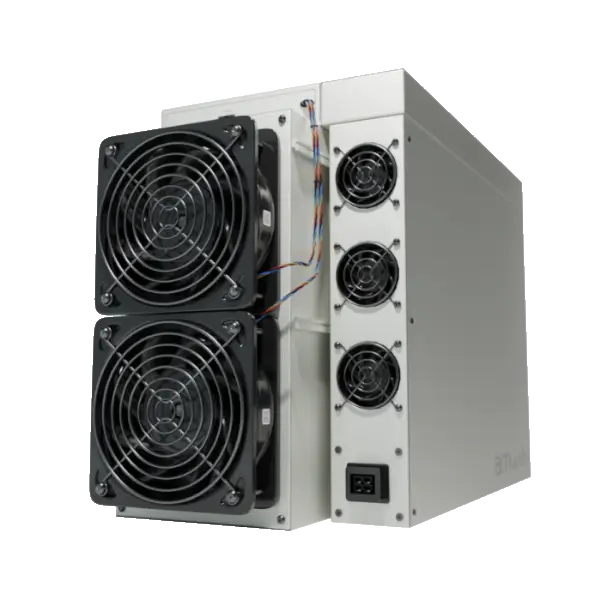
Antminer-S21 XP
bitmain antminer s21-1

Step 2: Connect to the Internet

  • Plug one end of the Ethernet cable into the miner.
  • Plug the other end into your router or network switch.

The Antminer S21 XP does not support Wi-Fi, so a wired connection is required for stable mining performance.

Step 3: Power On the Miner

  • Once power and internet are connected:

    • Turn on the PSU.
    • The miner’s fans will start spinning loudly — this is normal.
    • Wait 1–2 minutes for the system to boot.

    You should see indicator lights blinking, showing that the miner is initializing.

Step 4: Find the Miner’s IP Address

To configure your Antminer, you must locate its IP address.

Method 1: Use IP Reporter Tool

  • Download the IP Reporter software from the manufacturer’s website.
  • Press and hold the IP Report button on the miner.
  • The software will display the miner’s IP address.

Method 2: Check Your Router

  • Log into your router dashboard.
  • Look for connected devices.
  • Identify the Antminer by hostname or MAC address.

Step 5: Log Into the Miner Dashboard

  1. Open a browser on your computer.
  2. Enter the miner’s IP address.
  3. Log in using default credentials:
  • Username: root
  • Password: root

Important: Change your password immediately after logging in to improve security.

Step 6: Configure Mining Pool Settings

Navigate to the Miner Configuration → General Settings section.

Enter your mining pool details:

  • Pool URL
  • Worker name
  • Worker password

Example:

 
 stratum+tcp://pooladdress:port
 username.worker1
 password: x
 

Click Save & Apply.

The miner will restart and begin hashing.

Leave a Reply

Your email address will not be published. Required fields are marked *

OUR Locations

location_green
Campbell Store: 3165 S Winchester Blvd, Campbell, CA 95008, USA
location_green
London Store: 27 Old Gloucester St. London United Kingdom WC1N 3AX

Company Number 14161765

Newsletter

Get 15% off your first purchase! Plus, be the first to know about sales, new product launches and exclusive offers!

    24 support

    Call Us Now +1341-243-9603

    Email: info@asicminers.org

    Usdc Streamline Icon: https://streamlinehq.com
    Bnb Streamline Icon: https://streamlinehq.com
    Select the fields to be shown. Others will be hidden. Drag and drop to rearrange the order.
    • Image
    • SKU
    • Rating
    • Price
    • Stock
    • Add to cart
    • Description
    • Content
    • Weight
    • Dimensions
    • Additional information
    Click outside to hide the comparison bar
    Compare
    Home
    Shopping
    Wishlist
    Account